Visual Studio Code
Summary
While using JupyterHub makes it easy to get started, the interface is simple and there is no AI assistant. Visual Studio Code is a sophisticated IDE with a lot of features, including support for Jupyter Notebooks and Python, and has GitHub Copilot built-in.
Instructions
Download and install VS Code for your operating system
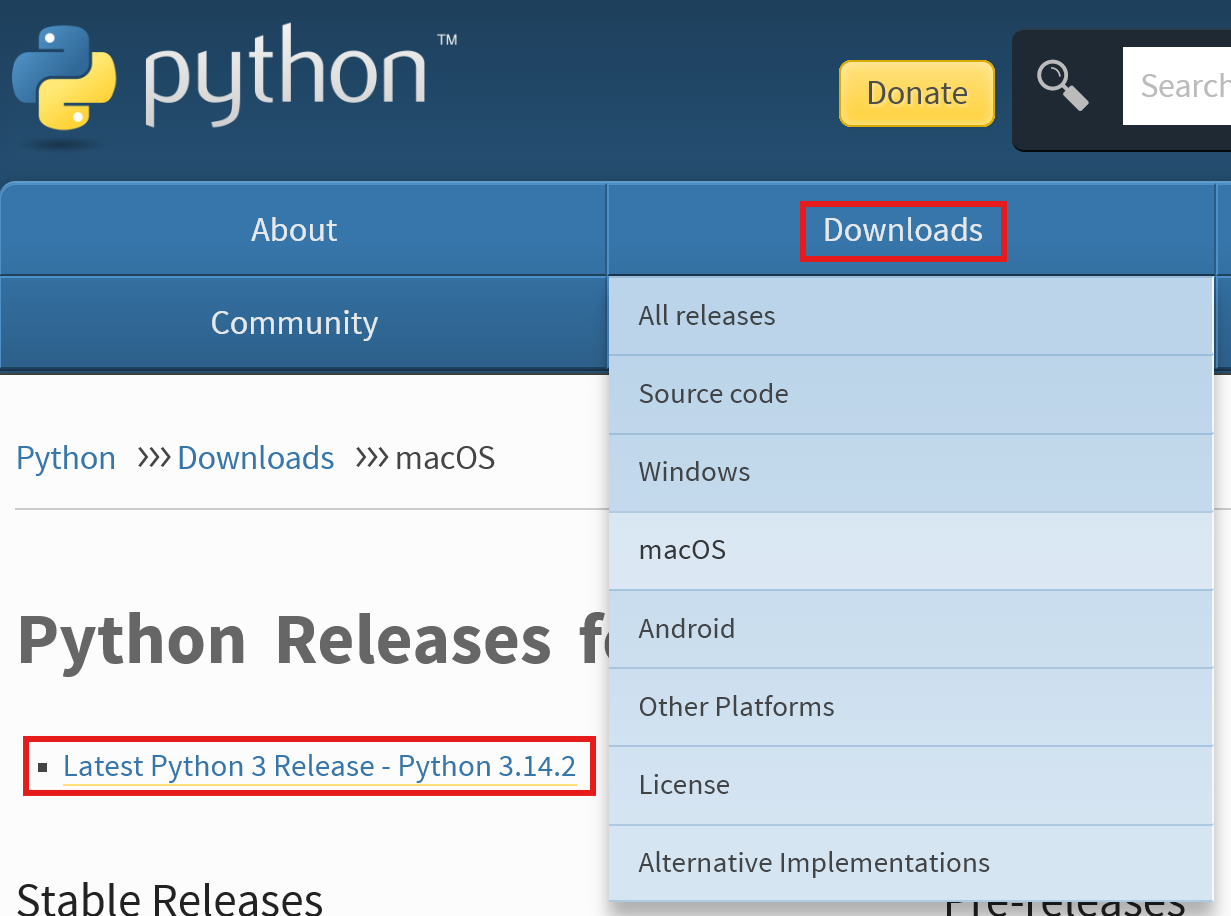
https://code .visualstudio .com /Download Download and install Python for your operating system
https://www .python .org /downloads/
Install Python packages in requirements.txt from your operating system’s command line interface.
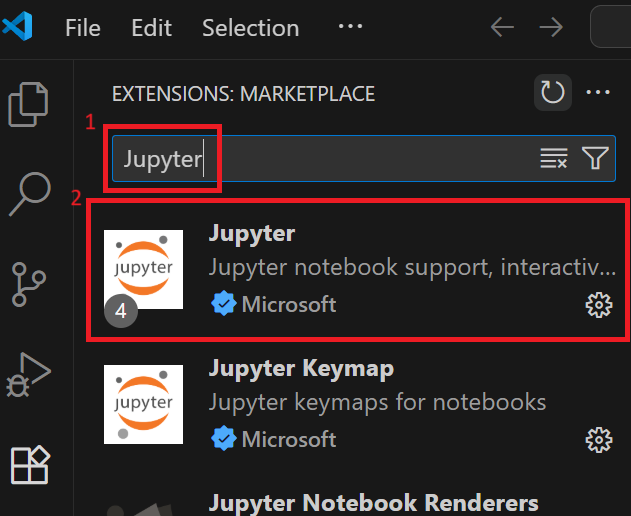
pip install -r requirements.txtOpen VS Code, go to the “Extensions” tab
Search for “Jupyter” and install the extension.
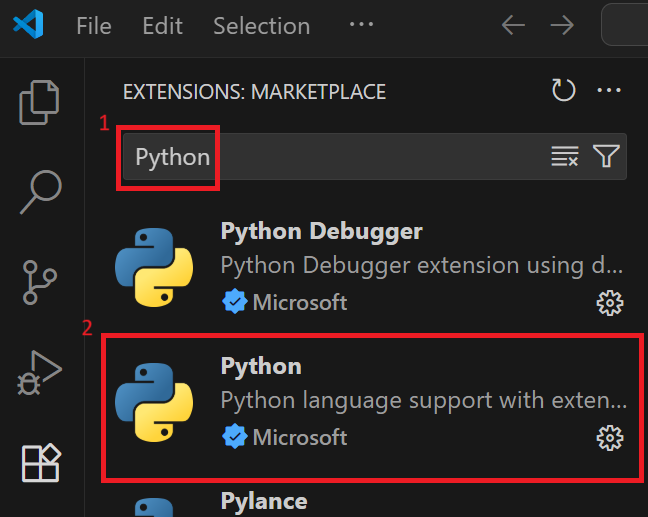
Search for “Python” and install the extension.
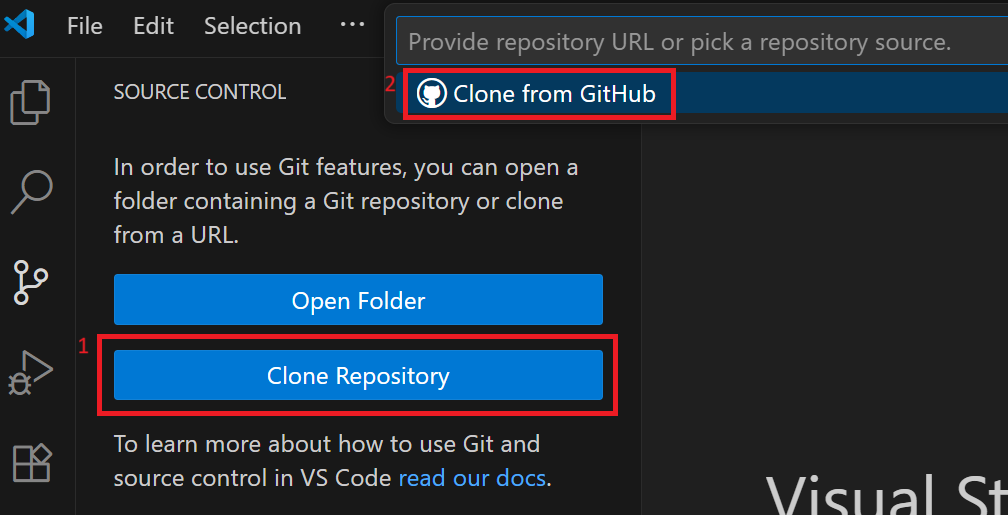
Optional: If not using GitHub Desktop, go to the “Source Control” tab
Click “Clone Repository”, then click “Clone from GitHub”.
Log into GitHub in the browser
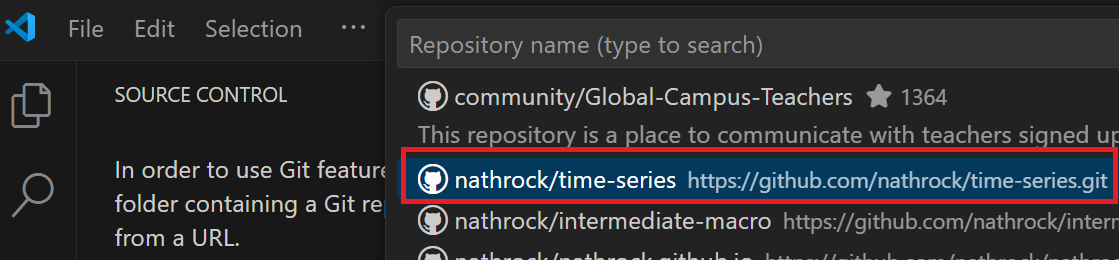
Go back to VS Code, click "Clone Repository " and select the repository from the drop down menu.
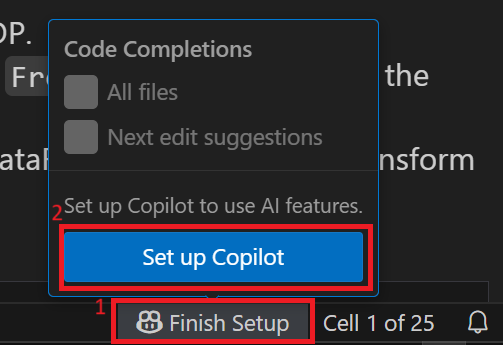
Optional: If Copilot is not already set up, click “Finish Setup” in the lower-right corner, then click “Set up Copilot”.