JupyterHub and GitHub
Setup
This setup gives JupyterHub access to your repositories on GitHub so that you can pull/push changes. The main benefit of this setup is that you can program and work collaboratively in any browser from any computer.
Log in to https://
jupyterhub .wm .edu with your W&M credentials If prompetd, select “Default Notebook (A Python3 SciPy Notebook)”
Go to https://
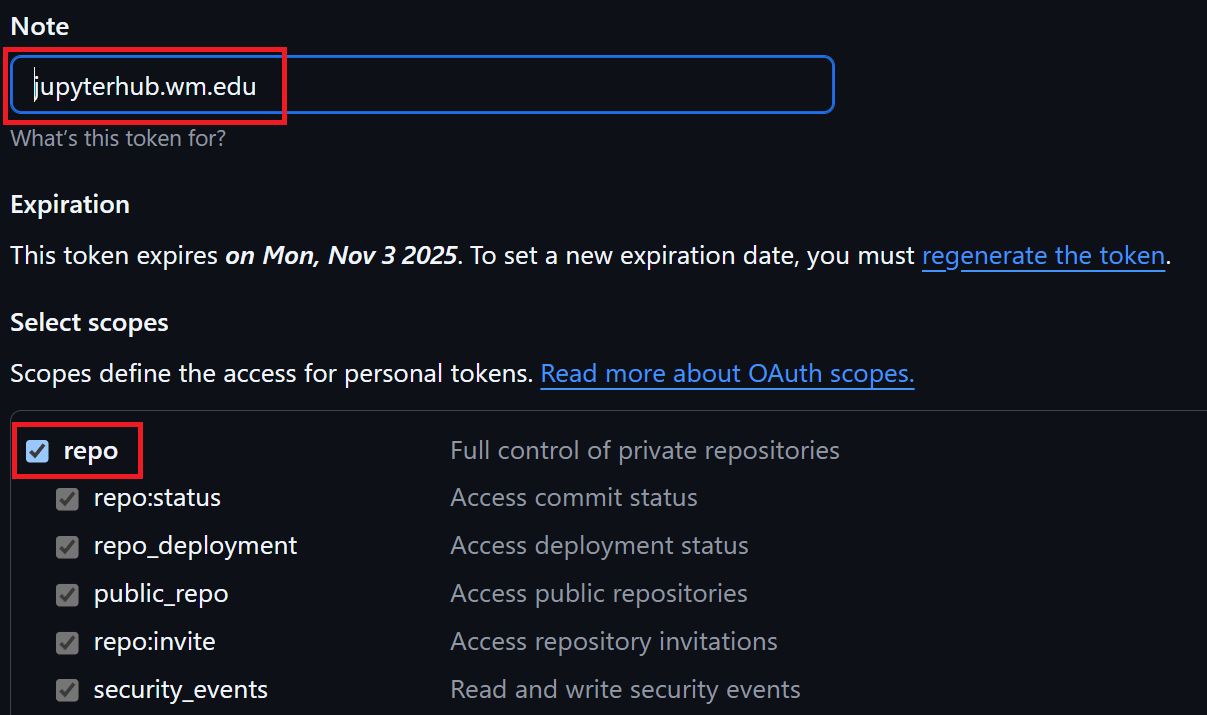
www .github .com /settings /tokens and create a personal access token. Put “jupyterhub.wm.edu” for the note.
Under “Select scopes”, check the “repo” box.
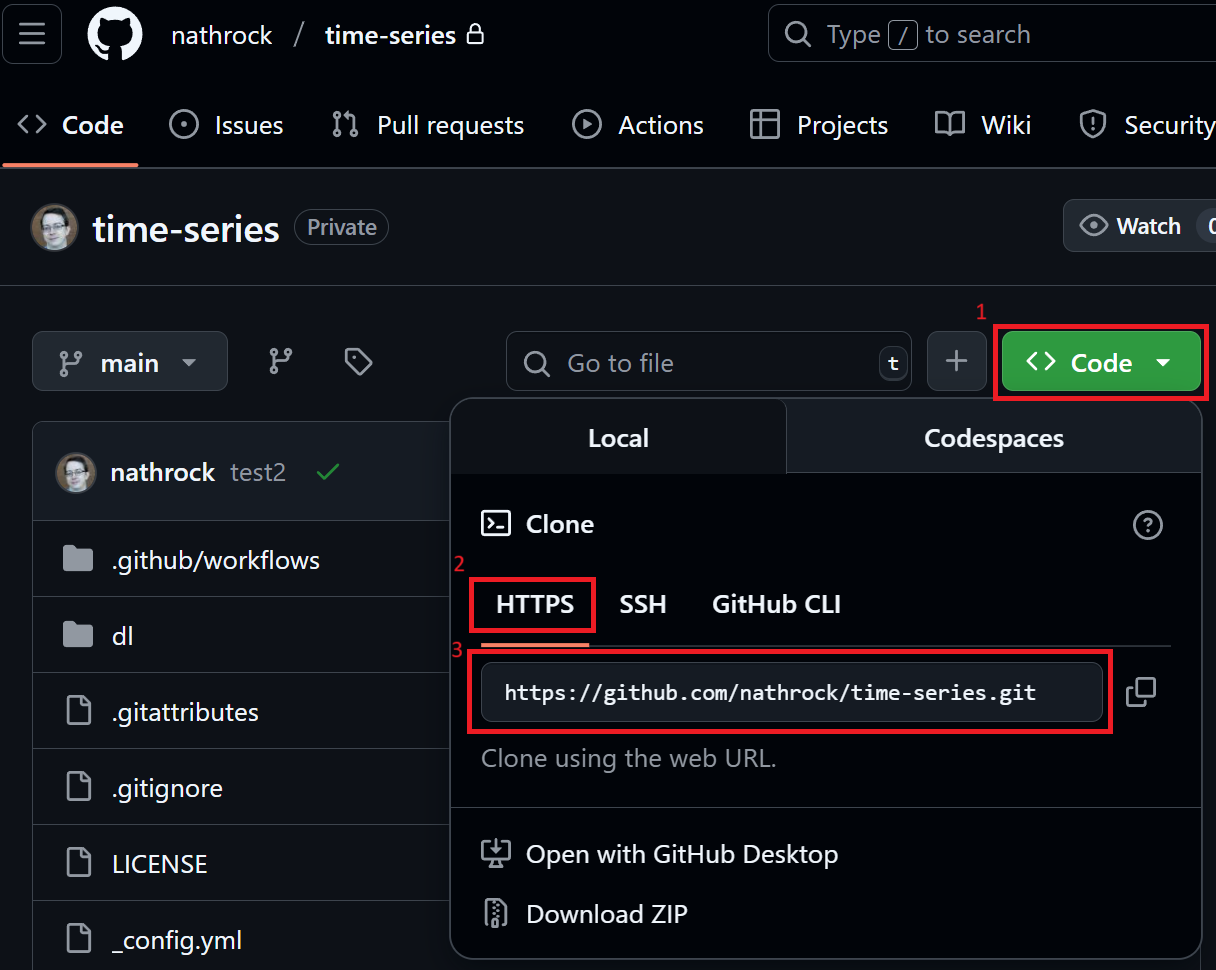
Find the URL to your repo, e.g.,
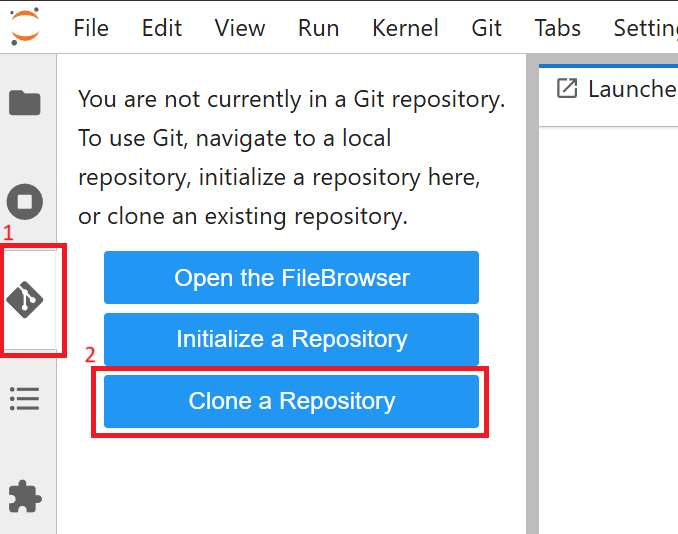
JupyterHub, Git tab, “Clone a Repository”, enter URL to repo, username and token.
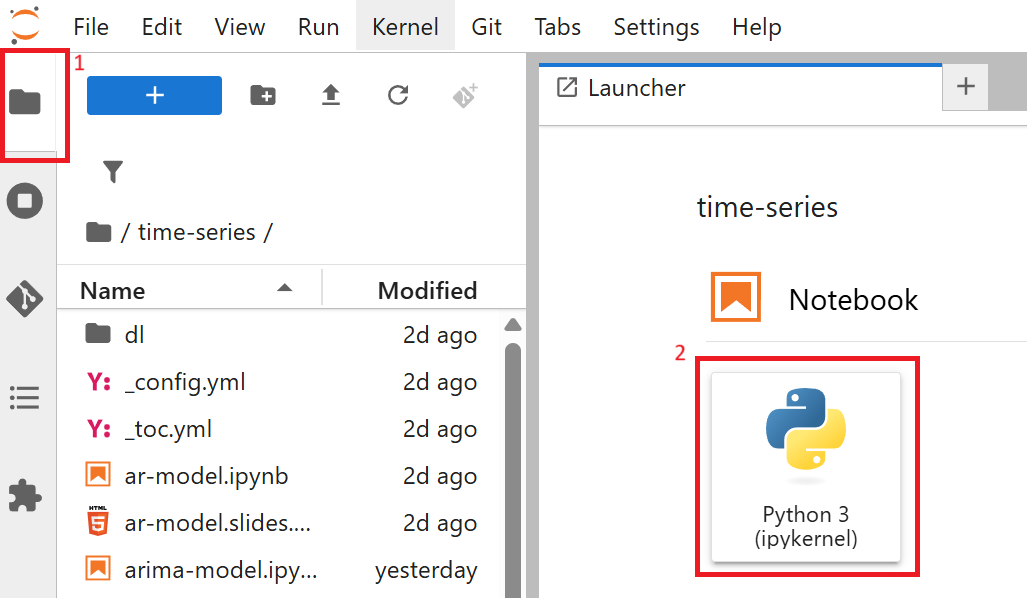
In the Launcher tab, click the “Python 3 (ipykernal)” button to create a Jupyter Notebook.
Git
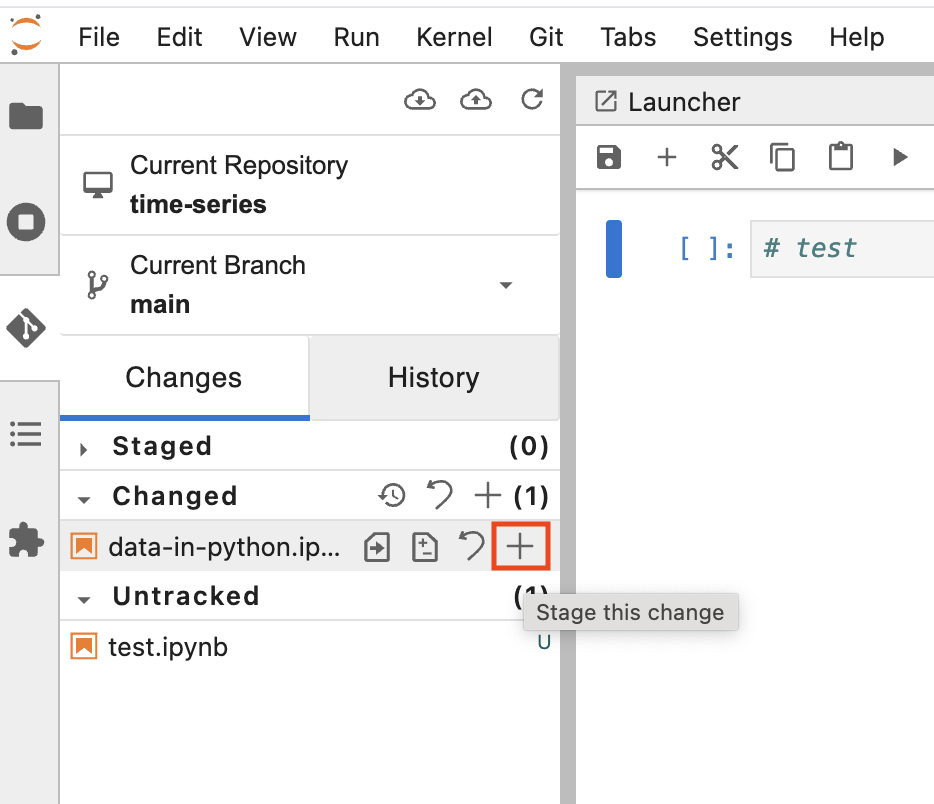
Once you are done editing and save a notebook, on the Git tab you can “Stage this change”
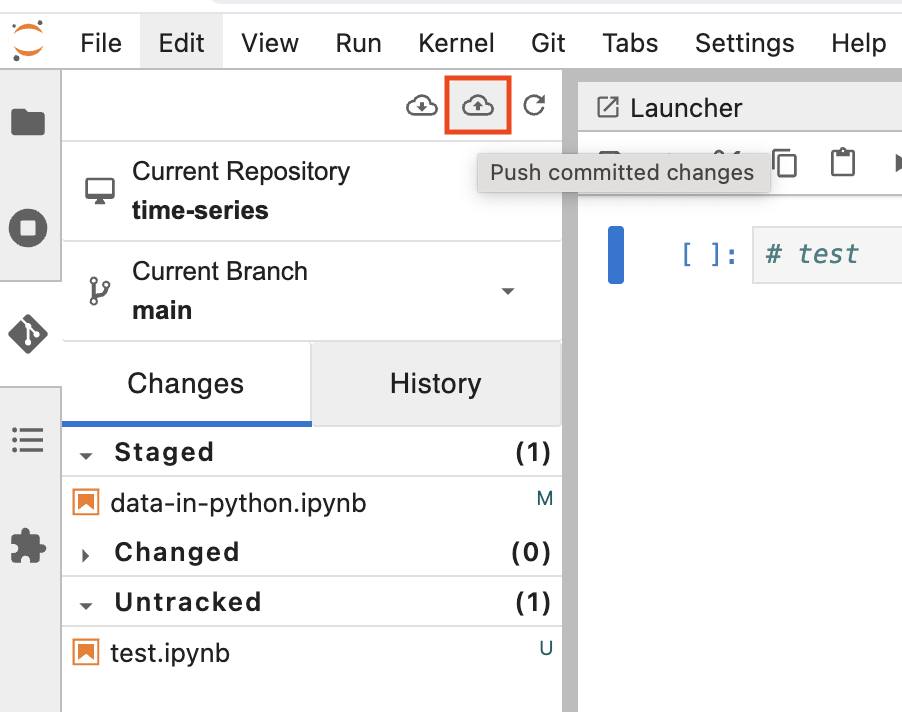
When you are ready to push changes to your repo, on the Git tab you can “Push committed changes”
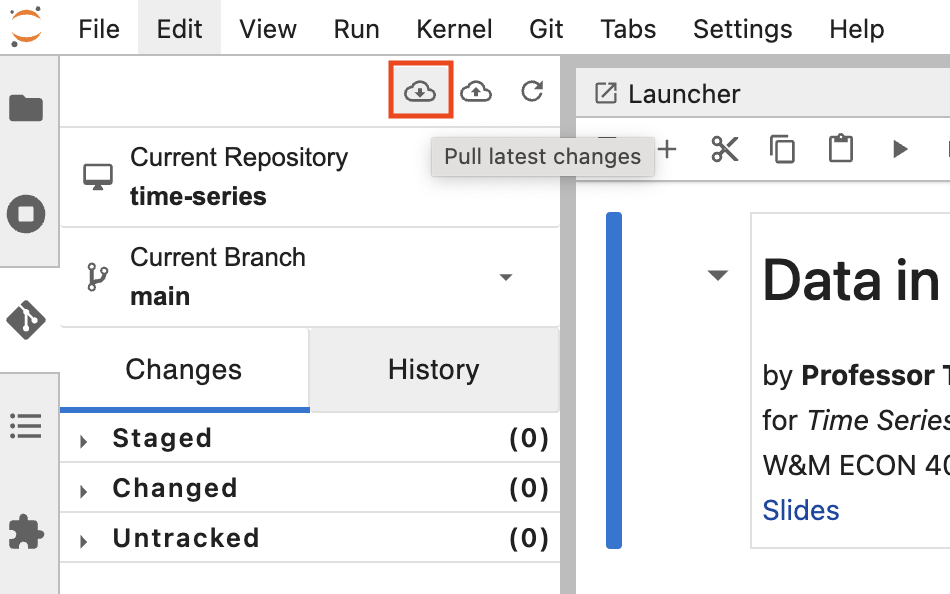
To get the most up-to-date files from the repository, on the Git tab you can “Pull latest changes”